How to Dictate in Gmail (2026): Desktop, iPhone, Android & Extensions
 UBIK Flow Team
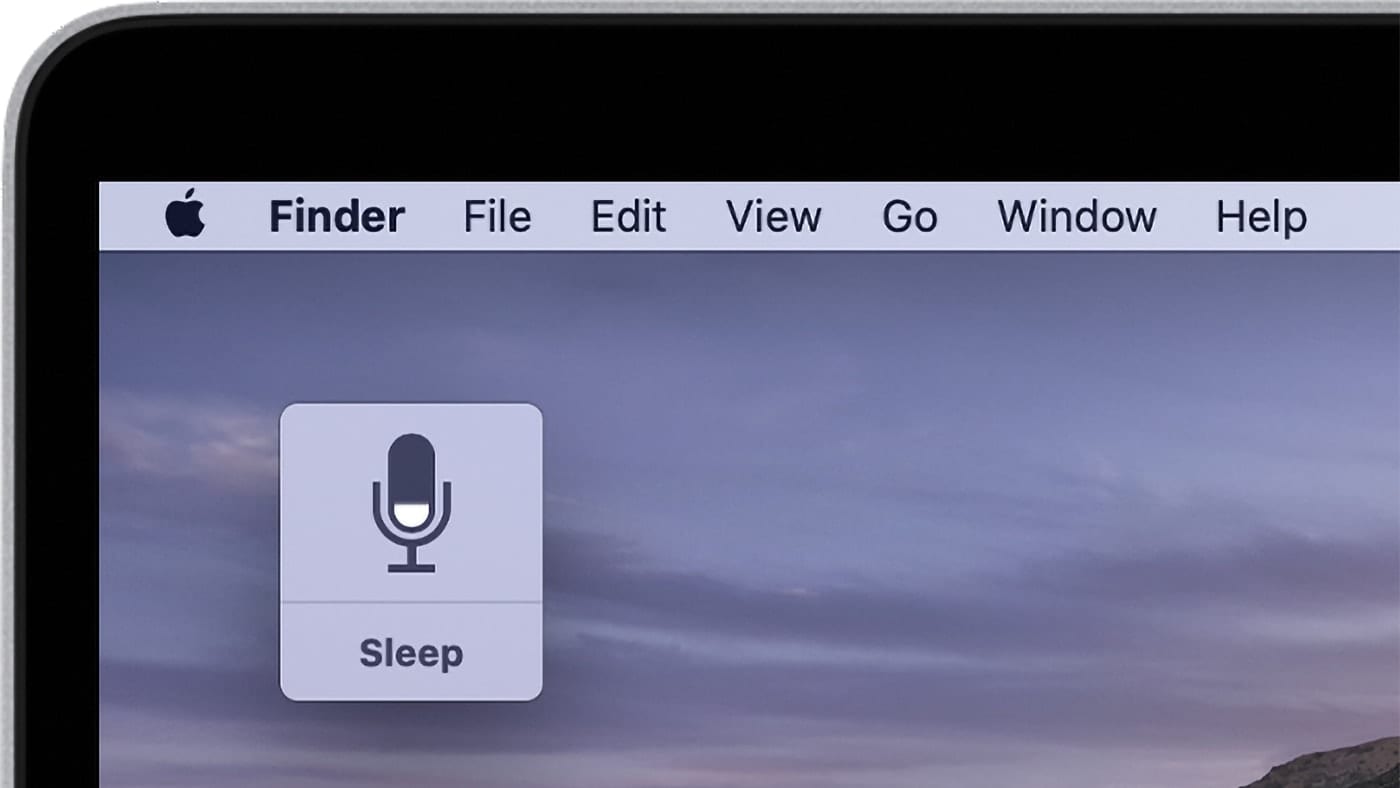
Gmail does not have a built-in dictation button
Most people assume Gmail includes voice typing because Google ships it on Android keyboards and through Google Assistant. Gmail's compose window has no microphone on desktop.
This guide covers what actually works to dictate in Gmail in 2026 and when to use UBIK Flow.
Quick answer
On desktop: UBIK Flow for Chrome. Two shortcuts, two jobs.
- ⌘⇧O (dictate): your words, transcribed at the cursor. Click in the Gmail body, hold the shortcut, speak, release.
- ⌘⇧T (agent): ask the AI to draft a reply using what is on screen. The thread stays visible. The answer lands at your cursor.
On Android: Open Gmail, tap the message body, tap the Gboard microphone. Text inserts at the cursor.
On iPhone: Same idea with the iOS keyboard microphone. Not a Gmail-specific feature.
To test your mic: Speech to text in your browser, free, no account.
Gmail alone is not enough on desktop. No built-in microphone, no native dictation in the compose window. You need an extension like UBIK Flow, or the keyboard mic on mobile.
What Gmail actually offers (and what it does not)
Gmail has no microphone button in compose on desktop. On mobile, dictation comes from the keyboard (Gboard or iOS), not from Gmail itself.
Do not confuse this with Gemini "Help me write" or Gmail Live: those are AI assistants that generate text from a prompt. They do not transcribe your voice.
Recommended on desktop: UBIK Flow (two modes)
UBIK Flow for Chrome gives you two voice shortcuts. Do not mix them up.
⌘⇧O: dictate (raw transcript)
Your sentence, word for word, at the cursor. No AI rewrite.
- Open Gmail. Click in the message body.
- Hold ⌘⇧O. Speak your reply.
- Release. Your text appears in the compose field.
- Edit names or tone if needed. Send.
Use this when you already know what to say and just want to skip typing.
⌘⇧T: agent (reply from screen context)
The AI reads what is visible (the thread on screen) and drafts a reply at your cursor.
- Open the Gmail reply. Click in the message body.
- Press ⌘⇧T.
- Ask out loud: "Draft a polite decline" or "Summarize and reply that I'll follow up Tuesday."
- Review the text. Send.
Use this when you want help drafting from the thread, not a verbatim transcript of your voice.
| ⌘⇧O dictate | ⌘⇧T agent | |
|---|---|---|
| Output | Your exact words | AI draft from screen context |
| Sees Gmail thread | No | Yes (visible screen) |
| Best for | Quick reply you can say out loud | Reply that needs thread context |
Test your mic first: speech to text
Google voice input on mobile
On mobile, the keyboard mic is the straightforward way to dictate in Gmail for short replies.
Android (Gboard)
- Open the Gmail app, tap Compose or Reply.
- Tap the message body (not the subject).
- Tap the microphone when Gboard appears.
- Speak, stop, review, send.
If it fails: check Settings → Apps → Gboard → Microphone, voice typing in Gboard settings, and that the input language matches what you speak.
iPhone
- Settings → General → Keyboard → Enable Dictation
- Gmail → message body → keyboard microphone → speak → Done
Where dictation in Gmail breaks
- Wrong field. Subject or search bar: nothing useful gets inserted.
- Blocked microphone. Browser, Gboard, or iOS permissions.
- Language mismatch. English engine + French speech = garbage output.
- Corporate laptops. Chrome extensions often blocked by IT.
- Gemini vs dictation. "Help me write" generates text. It does not transcribe your voice.
What UBIK Flow does not do
- Does not read your entire inbox. Only what is visible when you use the shortcut.
- Does not send emails for you.
- Does not replace Gmail.
- Does not require OAuth into your Google account.
Go further with UBIK Flow
UBIK Flow for Chrome: ⌘⇧O to dictate your exact words in Gmail. ⌘⇧T to ask the agent for a reply from what is on screen. Test your mic with the free speech-to-text tool before an important session.
FAQ
Does Gmail have built-in dictation?
No on desktop. On mobile, dictation comes from the keyboard (Gboard or iOS), not from Gmail itself.
How do I dictate an email in Gmail on desktop?
Click in the body, hold ⌘⇧O in UBIK Flow, speak, release. Your words land at the cursor. For an AI draft from the visible thread, use ⌘⇧T. Gmail has no native dictation on desktop.
What is the difference between ⌘⇧O and ⌘⇧T in UBIK Flow?
⌘⇧O transcribes your voice. Your words, not an AI rewrite. ⌘⇧T talks to the agent with screen context and drafts a reply at the cursor.
How do I use voice to text in Gmail on iPhone or Android?
iPhone: enable Dictation in keyboard settings, tap the mic in the Gmail body. Android: tap the Gboard mic in the Gmail body.
Why is Gmail voice typing not working?
Check the cursor is in the body, microphone permissions, language settings, and whether IT blocks Chrome extensions. Test your mic with speech-to-text.
Can I dictate a reply in Gmail?
Yes. Mobile: keyboard mic. Desktop: ⌘⇧O for your exact words, ⌘⇧T for an AI draft from the thread.
What is the difference between voice typing and Gemini "Help me write"?
Voice typing transcribes your speech. "Help me write" generates text from a written prompt.
How do I dictate in Gmail without a microphone button in the interface?
Desktop: UBIK Flow (global shortcut, not a mic button inside Gmail). Mobile: Gboard or iOS keyboard mic.
Written by
UBIK Flow Team
Practical guides on prompts, voice input, and AI workflows for knowledge workers.